Meeting the ADA Title II Digital Accessibility Requirements

Patriot PDF & Media Purge Initiative

Patriot PDF & Media Purge Initiative

DubBot opens a new window is George Mason's web governance solution and serves as the university's primary tool for monitoring website accessibility. It is highly effective at identifying HTML and CSS accessibility issues, including color contrast problems, missing alternative text for images, and unclear hyperlink text. DubBot also helps identify PDFs and media content (e.g., audio and video) published on university websites. However, it provides limited insight into the accessibility of these resources, including whether PDFs are accessible or whether media content includes features such as captions, transcripts, audio descriptions, and keyboard access.

The Patriot PDF & Media Purge Initiative was established to address these gaps. Through this initiative, colleges, schools, departments, and administrative units review existing PDF and media content, remove outdated or unnecessary resources, remediate content that must remain publicly available, and implement ongoing monitoring practices to help ensure digital content remains accessible and aligned with updated regulatory requirements.
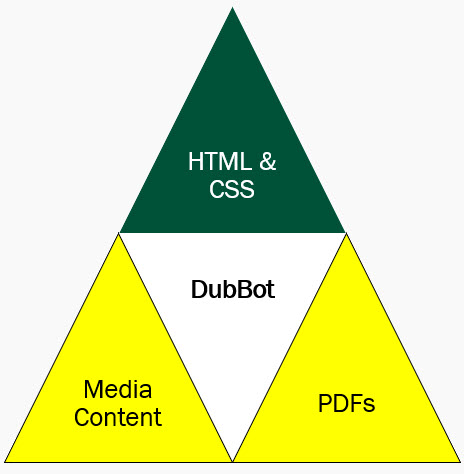
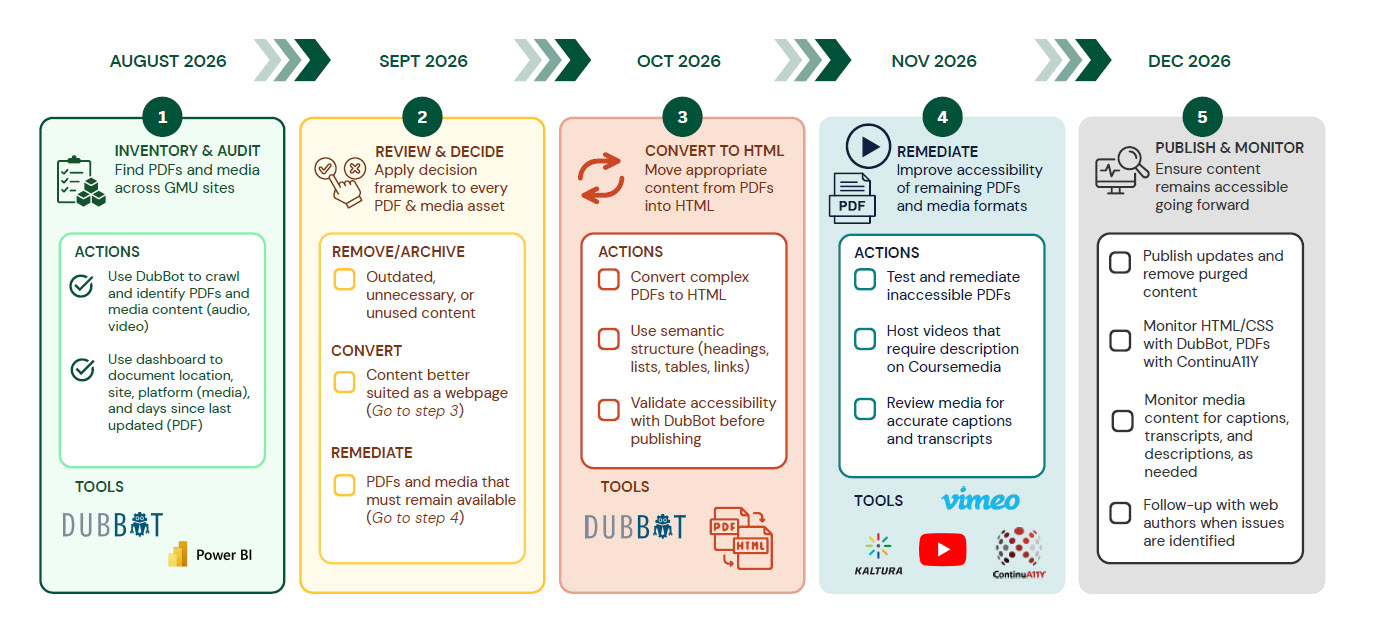
Diagram showing DubBot's strong coverage of HTML and CSS content and its more limited coverage of PDFs and media content.

Patriot PDF & Media Purge Timeline

Timeline showing the five phases of the Patriot PDF and Media Purge Initiative: inventory and audit, review and decide, convert to HTML, remediate PDFs and media, and monitor and maintain. Go to the Patriot Purge Process section below for detailed step-by-step information.

Prefer a one-page handout? This one-page flyer highlights the steps site owners, developers, and content authors should take to address PDF and media content issues. Download the PDF

Patriot Purge Process

Step 1: Inventory & Audit

Identify all PDFs and media content published across George Mason websites and document where they are located. This inventory creates a baseline for the initiative and helps units determine which PDFs and media content need to be removed, converted to HTML, or remediated to meet accessibility standards.

Actions include:

  • Use DubBot to crawl websites and identify PDFs and media content, including audio and video.
  • Use the dashboard to document each asset's location and website.
  • Document the hosting platform for media content.
  • Document the number of days since each PDF was last updated.

How should I get started?

  • Use the DubBot buttons below to learn about the tool and review any HTML and CSS-related accessibility issues on your site.
  • Use the PDF and Media Inventory Dashboard button below to review all PDFs, audio, and video files connected to your site. Ensure the dashboard is accurately capturing all your assets before moving on to Step 2.
Step 2: Review & Decide

Review each inventoried PDF and media asset to determine whether it should be removed from the website, converted to HTML, or remediated to meet accessibility standards. This step helps units focus time and resources on content that still serves a current academic, administrative, or public-facing need. Depending on the file location (i.e., WebDocs), some units may be required to follow a stricter remove-or-remediate approach, while others may rely on interim solutions such as HTML alternatives as they work through larger repositories.

Actions include:

  • Remove or archive: Remove content that is outdated, unnecessary, or unused; archive content only when it must be retained for business, historical, records-retention, or compliance purposes.
  • Convert: Convert content that is better suited as a webpage or, where appropriate, provide an HTML alternative. Proceed to Step 3.
  • Remediate: Fix accessibility issues in PDFs and media that must remain publicly available. Proceed to Step 4.

How should I get started?

  • Use the Keep, Convert, Archive, Remove button below to review each PDF and determine the appropriate next step.
  • Use the Media Decision Framework button below to determine how to ensure media content meets accessibility standards.
  • Keep in mind that implementation may vary by file location - Site owners hosting documents in WebDocs will be expected to remove noncompliant documents quickly, while others may use interim HTML alternatives as they work through larger, and sometimes more distributed, document collections.
Step 3: Convert to HTML

Focus on the PDFs that were identified in Step 2 for HTML conversion. In many cases, units should merge that information into a new or existing webpage. Units also may take advantage of the SMARTHTML Tool to provide an accessible HTML alternative to the source PDF while longer-term remediation work is underway.

Actions include:

  • Review each PDF selected for conversion and determine whether the content should be rebuilt directly into a webpage or supported through the SMARTHTML Tool as an interim HTML alternative.
  • Ensure new or existing pages use an accessible HTML structure that includes semantic headings, lists, tables, and descriptive links.
  • Use the SMARTHTML Tool when a PDF must remain linked, when the file is complex, or when the unit needs a stopgap solution while full PDF remediation is still in progress. (PLEASE NOTE: PDFs hosted on WebDocs must be remediated or removed. The SmartHTML tool is not available for this storage location.).
  • When using SMARTHTML, confirm that the user experience works as intended so end users can open the modal, review the source PDF, and use the toggle button to switch to the HTML alternative.

What is the SmartHTML Tool?

The SmartHTML Tool is a single line of JavaScript added to your website. The script crawls your site, identifies PDFs, and, when a user selects a PDF link, opens a modal displaying both the source PDF and an accessible HTML alternative. a toggle button allows you to switch between the two. This solution is not available for PDFs hosted on WebDocs.

Follow the links below for examples of how this tool would work on your site:

How should I get started?

  • Create a new page or update an existing one from the content that is being converted into HTML.
  • PDFs hosted on WebDocs: Prioritize direct HTML conversion, remediation, or removal of PDFs that do not need to remain public.
  • PDFs hosted on other sites: For PDFs that must remain publicly available or are too complex to fully rebuild right away, request access to the SMARTHTML Tool.
Step 4: Remediate PDFs & Media

Focus on the PDFs and media content that must remain publicly available and were identified in Step 2 for remediation. Units should use available auditing tools to identify accessibility issues, prioritize files that need work, and either remediate them internally or request support when needed.

Actions include:

  • PDFs: Use the ContinuALLY Tool/Service to audit sites with large PDF repositories; smaller units may also use Panorama's DocHub opens a new window to review individual files or smaller collections.
  • Media Content: Remediate media content by ensuring they are hosted on an accessible platform (i.e., YouTube, Vimeo, Kaltura) and by adding captions, transcripts, and/or audio descriptions.

What is ContinuALLY?

ContinuALLY is a PDF auditing tool that automatically scans your site, find any hosted PDFs, and evaluates their accessibility. This is being implemented to support units with quickly determining which PDFs require remediation support and which do not. We expect the tool to be rolled out in early October. In the interim, the vendor is running manual audits to ensure web content authors have the information they need right now.

How do I get started?

  • ContinuA11Y Tool/Service: Units with large repositories can use the Request ContinuALLY Audit button to request an audit of their PDFs. Once the audit report is received, ATI staff will consult directly with web content authors on which PDFs require remediation support. Web content authors can remediate these resources on their own or request a document accessibility review from the ATI.
  • Panorama's DocHub: Use the Log Into DocHub button to log in and upload your documents. Once processed, review the accessibility score icons. Prioritize remediation for commonly used PDFs and those with RED or ORANGE accessibility scores. PDFs with GREEN accessibility scores are acceptable to keep in place. Remediate these resources on your own or request a document accessibility review from the ATI.
  • Media Content: Refer back to the Media Decision Framework in Step 2 for guidance on what to do with existing media resources. For media content that requires captions, transcripts, and/or audio descriptions, use the ATI Support Services button.
Step 5: Publish & Monitor

Publish the updates completed in the earlier phases and establish an ongoing process for monitoring PDFs, media, and webpages over time. This helps units maintain the work they have completed, catch new issues early, and reduce the likelihood that inaccessible content will accumulate again.

Actions include:

  • Publishing new or updated webpages, remediated PDFs, and the accessible media content identified in Steps 2-4.
  • Removing or archive outdated files and confirm that old links, navigation paths, and downloads no longer point users to content that should not remain public.
  • Using DubBot to continue monitoring websites for HTML and CSS accessibility issues and to identify newly published PDFs and media content.
  • Using ContinuALLY or Panorama's DocHub to periodically review PDFs that remain public and confirm that new files are evaluated for accessibility prior to posting.
  • Using accessible platforms (i.e., YouTube, Vimeo, and Kaltura) and monitor media content to ensure captions, transcripts, and audio descriptions (when necessary) remain in place as content changes over time.
  • Using ATI Support Services if you need assistance with ongoing PDF remediation, media accessibility, or website reviews.

Have Questions?

Contact the Assistive Technology Initiative, ITS Web Administration, or the Office of University Branding for assistance.

← Back to Web Timeline